
Bring your Kobo notes into LeafTrove.
Choose your device and follow one step at a time. Import for free first, then find and reread your highlights.
Free import · No sign-in · Read-only access to Kobo
Choose your device and import method
Connector diagrams are not to scale. iPhone 15 and later use USB-C; earlier compatible iPhones use Lightning.
Open Settings → General → About to check your model and iOS/iPadOS version. LeafTrove needs version 17 or later.
iPhone 15 and later, including iPhone Air: USB-C. Earlier compatible iPhones, such as XS/XR, 11–14 and SE (2nd/3rd generation): Lightning.
USB-C iPad models: iPad 10/A16; Air 4/5 and M2/M3/M4; mini 6/A17 Pro; all 11-inch Pro models, 13-inch Pro M4/M5, and 12.9-inch Pro generations 3–6.
Other compatible Lightning iPads can use computer export. Check the full model name and OS version; generation and OS version are different.
Check iPhone/iPad models and requirementsOnce you know, select USB-C or Lightning above.
Choose iPhone/iPad and its connector first.
No physical Kobo, only a reading app, or an older iOS version?
You need a compatible physical Kobo, a data cable and iOS/iPadOS 17 or later. A Kobo account or phone reading app cannot replace the eReader. Supported: EPUB/KEPUB text highlights and notes; not PDFs, handwriting or full books.
You can still download LeafTrove and choose “See the sample library first” at the end of “How it works”. No sign-in or Kobo needed for the sample.
Have these three things ready.
Import Kobo notes into iPhone/iPad by cable, free, without sign-in, a subscription, a computer or an assistant.
LeafTrove on iOS/iPadOS 17 or later; a compatible Kobo with EPUB/KEPUB text highlights or notes; and a USB data cable that fits both devices. Download or update LeafTrove.
A charge-only cable cannot transfer notes.
Connect the same Kobo and tap “Connect” on the eReader to read its latest contents. From LeafTrove 1.3.1 you usually do not need to select KOBOeReader again. Importing merges notes and preserves favorites, reminders and review progress. Older notes absent from this source are not deleted.
No suitable cable, or connection problems?
If you have Mac/Windows and a Kobo data cable, you can export in a browser and transfer the file instead. No subscription is required.
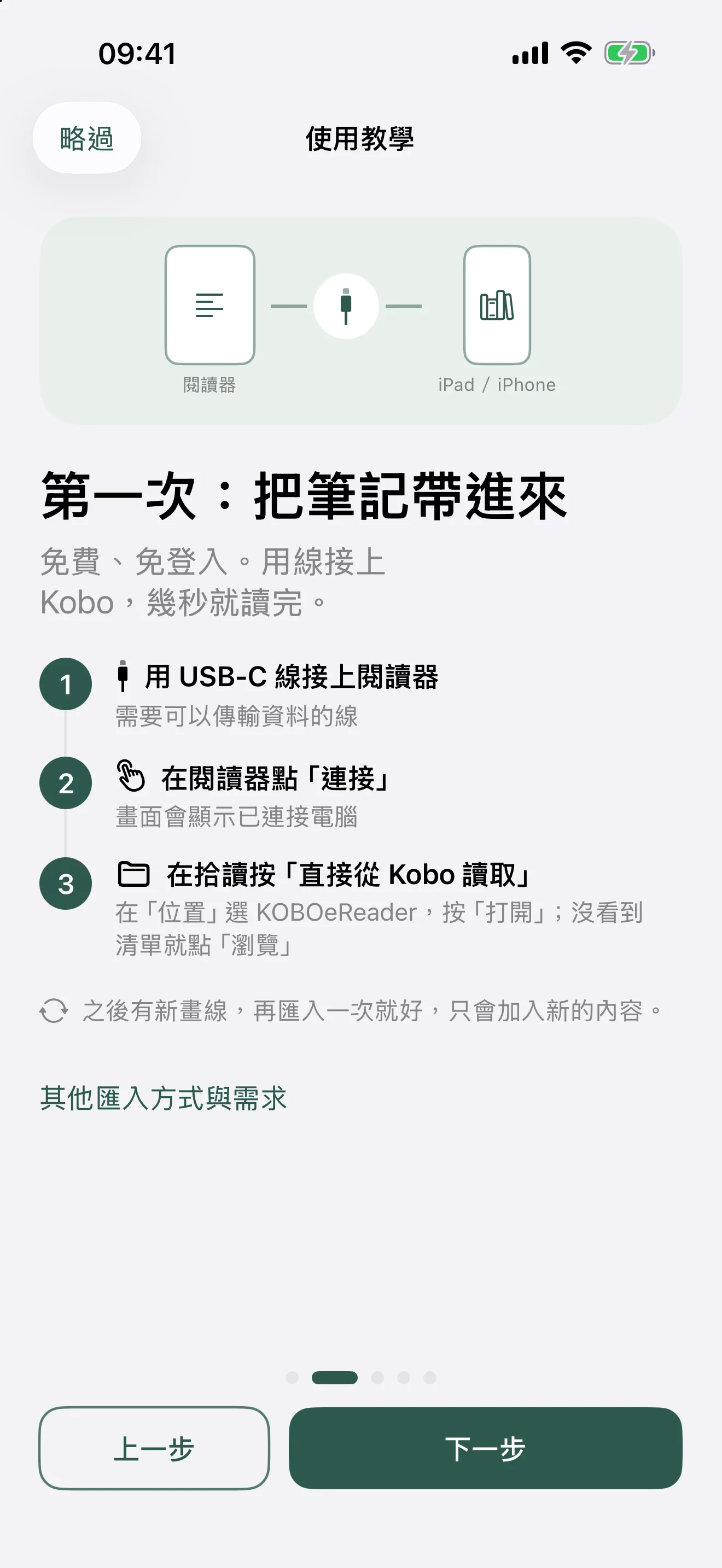
Connect the Kobo and tap “Connect”.
Connect the Kobo to iPhone/iPad with the data cable. Tap “Connect” on the eReader when its USB prompt appears.
A “Connected to computer” message is normal even when connected to a phone or tablet.
No connection prompt, or only charging?
Wake the Kobo, leave it on its home screen and reconnect. Check both plugs and try a known data cable.
If the device reports insufficient power, try a compatible powered USB hub or use computer export. Charging alone does not tell you whether the disk is connected. Check for KOBOeReader in the next steps.
In LeafTrove, choose “Choose my Kobo”.
Switch to LeafTrove to carry out these actions, then return here.
- On the home screen, tap “Bring in my Kobo notes”.
- Find “Connect a Kobo by cable” and tap “Choose my Kobo”.
When updating, the import screen starts with “Update your last Kobo”: tap “Update notes”. The picker usually does not open; “Same Kobo as last time, so it was updated without asking again.” means the update is done. If the picker opens, select KOBOeReader as in the next step. “Choose my Kobo” moves to “First time, or a different Kobo”; with a different Kobo, the app shows a preview first, so check it before importing.
Still on the first-run tutorial?
Tap “Skip” to return home and choose “Bring in my Kobo notes”. Or finish the tutorial and choose “Import by cable for free first”. You do not need to subscribe.
Seeing a Wi-Fi setup card or subscription offer?
Scroll down to “Connect a Kobo by cable” and choose “Choose my Kobo”. Free reading needs no sign-in, pairing or subscription. You can consider Wi-Fi after importing.
Already have notes and cannot find Import notes?
Use “Import” next to “My books”, or open “Settings → Import new notes”. Leave the sample library first if you are still viewing it.
See the existing 1.3 in-app cable tutorial
Select KOBOeReader under “Locations”.
In the system picker, tap the bottom “Browse” tab, sometimes twice, until you see “Locations”.
In the system picker, expand the sidebar and find “Locations”.
- Locations
- KOBOeReader
- Open
Select the KOBOeReader disk itself, then tap “Open”. Do not open a book folder or look for a database or hidden files.
Keep the cable connected while LeafTrove reads. Wait for the preview of books and notes.
Only Recents, On My iPhone/iPad, or an empty LeafTrove folder?
These are not the Kobo. An empty LeafTrove folder belongs to the app and does not mean your reader notes are missing. Return to “Locations”: on iPhone use the bottom “Browse” tab, sometimes twice; on iPad use the sidebar.
KOBOeReader is missing from Locations
Confirm that you tapped “Connect” on Kobo, and check the cable, plugs and power. Allow the device to recognize the accessory.
If it still does not appear, cancel the picker and use computer export. Do not reset the Kobo, pair again or buy a subscription to fix free import.
Wrong folder, cancelled picker, or a read error?
Tap “Choose my Kobo” again and select the KOBOeReader disk itself. Cancelling does not mean notes are damaged. Keep any error text or code; check diagnostics or contact support. Do not send private notes or a full database.
Export on a computer, then transfer to iPhone/iPad.
You need Mac/Windows with Chrome or Edge, a compatible physical Kobo, a USB data cable, and LeafTrove on iOS/iPadOS 17 or later. No assistant installation, sign-in or subscription needed. Download or update LeafTrove.
Use the computer for the export tool, and your iPhone/iPad for the final import.
Create a fresh export from Kobo. Importing an older file again will not retrieve new highlights from the eReader.
No computer available right now?
USB-C devices can use direct cable reading. On Lightning, an Apple Lightning to USB 3 Camera Adapter with suitable power may also let LeafTrove read directly; mounting still depends on accessories, cable and power.
This guide covers USB-C direct reading and computer export. Without suitable equipment, try the sample library first and import later. You do not need to pay. Check device requirements.
Download the .leaftrove export on your computer.
- Connect Kobo to the computer and tap “Connect” on the eReader.
- In Chrome/Edge, open the export tool below. Click “Select Kobo disk” and select the KOBOeReader disk itself.
- When reading finishes, click “Download export file” to save the .leaftrove file.
If you are reading this on a phone, open https://homadeworks.com/en/apps/leaftrove/export/ in Chrome/Edge on your computer.
After downloading, safely eject KOBOeReader in Mac Finder or Windows before unplugging. The tool processes notes locally without uploading them.
Cannot select the disk, or KOBOeReader is missing?
Use Chrome or Edge on a computer, not a phone or Safari. Confirm Kobo is connected. If the tool uses a folder picker, select the disk’s root. If Finder/File Explorer cannot see it either, check the connection and cable. More export help.
An error, or no notes to export?
Check for EPUB/KEPUB text highlights or notes on Kobo. PDFs, handwriting and full books are excluded. Keep the error text, model and firmware; contact support. Do not modify or send the full database.
Save the export in the Files app.
Send the .leaftrove file to your own iPhone/iPad. You do not need the assistant installer or a complete backup folder.
The file contains private notes. Send it only to yourself and avoid public sharing links.
I use a Mac
AirDrop the export to your device. Make sure it is saved in Files. If it opens LeafTrove directly, follow the app’s import preview.
I use Windows, or cannot use AirDrop
Use your own iCloud Drive, another cloud drive or a private file-transfer method. On your device, find the file and choose “Save to Files” in its share menu. Remember the folder.
Received the file, but cannot find it in Files?
Return to the app that received it, open the share menu and choose “Save to Files”. Download cloud files to the device if necessary. The name may be LeafTrove-Kobo-date.leaftrove; do not choose a .dmg, .exe or assistant ZIP.
In LeafTrove, tap “Choose export file”.
- Open LeafTrove and tap “Bring in my Kobo notes” on the home screen.
- Tap “Choose export file” and choose the .leaftrove file you just saved.
- Wait for the preview of books and notes.
Still in the tutorial or subscription introduction?
Tap “Skip”, then “Bring in my Kobo notes” on the home screen. Or finish the tutorial and choose “Import for free first” (“Import by cable for free first” on USB-C). Free file import needs no sign-in, pairing or subscription.
Only seeing direct Kobo reading or an adapter question?
On Lightning, LeafTrove first asks whether you have an adapter that can be powered; choose “No, export on a computer” or “Not sure, export on a computer” and “Choose export file” appears. On USB-C, expand “Use a computer export file instead”, then tap “Choose export file”. With existing notes, use “Import” next to “My books”, or “Settings → Import new notes”.
Cannot select or read the file, or cancelled?
Select the complete .leaftrove file, not an installer. Download it in Files first if it is still in the cloud. After cancelling, tap “Choose export file” again. If it still fails, keep the error text and contact support; subscribing is not required.
Check the preview, then tap “Confirm import to library”.
In LeafTrove, check the actual book and note counts and any skipped-item explanations before importing.
- Confirm these are the Kobo notes you want to import.
- Tap “Confirm import to library” at the bottom of the app.
- Wait until the app shows “Import complete”, then tap “Back to library”.
A preview is not a completed import. Confirm in the app and wait for saving to finish. Keep the cable or source file available during reading and saving.
Importing again merges existing notes and preserves favorites, reminders and review progress. No newly added content may simply mean there were no new highlights.
Fewer notes, skipped items or missing covers?
Only EPUB/KEPUB text highlights and notes are supported, not PDFs, handwriting or full books. Missing covers do not prevent reading. If supported notes are missing, keep the preview and error text and contact support. Do not reset Kobo or send its full database.
No new content, or no Import complete message?
Make sure new highlights were saved on Kobo. Re-read by cable, or create a fresh export; an old file does not contain new highlights. If still on the preview, tap “Confirm import to library”. For errors, check diagnostics. Do not confirm completion below until the app has finished.
This is a web guide. Complete the actual action in LeafTrove before continuing here.
You confirmed that the app finished importing.
Now find a passage you highlighted.
Tap “Back to library” in LeafTrove. Use “Search books and notes” to search for a title or a few remembered words. Open a note, reread it, then tap “Favorite” to keep it close.
Imported notes are free to read offline, search and favorite. Use the same import method when Kobo has new highlights.
Want fewer cables later? Wi-Fi and subscriptions
Free cable/file import remains available. Wi-Fi requires a supported model and firmware, an active trial or subscription, and a LeafTrove Wi-Fi cloud account. Check compatibility first.
USB-C iPhone/iPad can set up Wi-Fi by cable from 1.3 on; other devices can use the computer assistant. Setup backs up data and writes sync components, unlike the read-only import.
After setup, manually tap “拾讀 同步筆記” on Kobo, check that it finished, then open LeafTrove to refresh. iCloud library sync between iPhone/iPad is a separate subscription feature.
Prices and trial eligibility are shown by Apple. Downloading the app or viewing plans does not start a trial; you can decide later.
Make rereading a daily habit
After importing, use daily reading with your own notes. The free plan also includes one daily reminder and a small Home Screen widget; you need to set them up yourself.
Set up reminders and widgets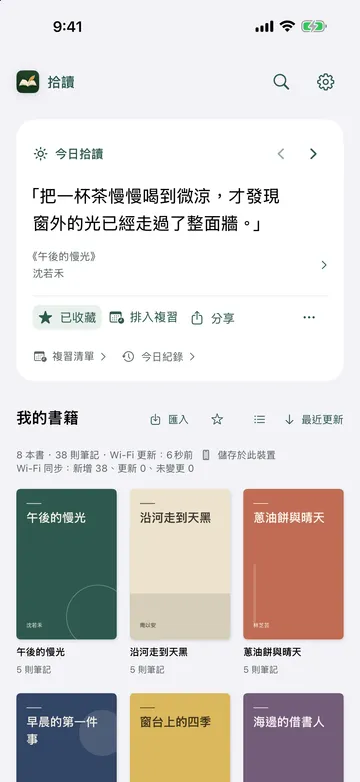
This browser remembers only your device choice and guide position. The guide does not read or upload your Kobo notes. Read the full instructions